


Google Ads – Setting up a Passkey
Updated July 2026
Google’s deadline to set up a Passkey for Google Ads is fast approaching, get ahead of things and set one up now. This should only take a few minutes.
Preparation
Before we get started you will need a place to store your Passkey. There are plenty of options, all of which can be used:
- Google Password Manager: Comes pre-configured within Chrome and is easy to use.
- Apple Passwords: Built in on all Apple devices.
- Windows Hello: Any Windows device with a fingerprint or camera login.
- 3rd Party Password Managers: Works on every device
Where to start
Head on over to g.co/passkey, and click on Create a passkey. Google will then prompt you to confirm it’s you through a 2 factor authentication prompt (text/2fa code):
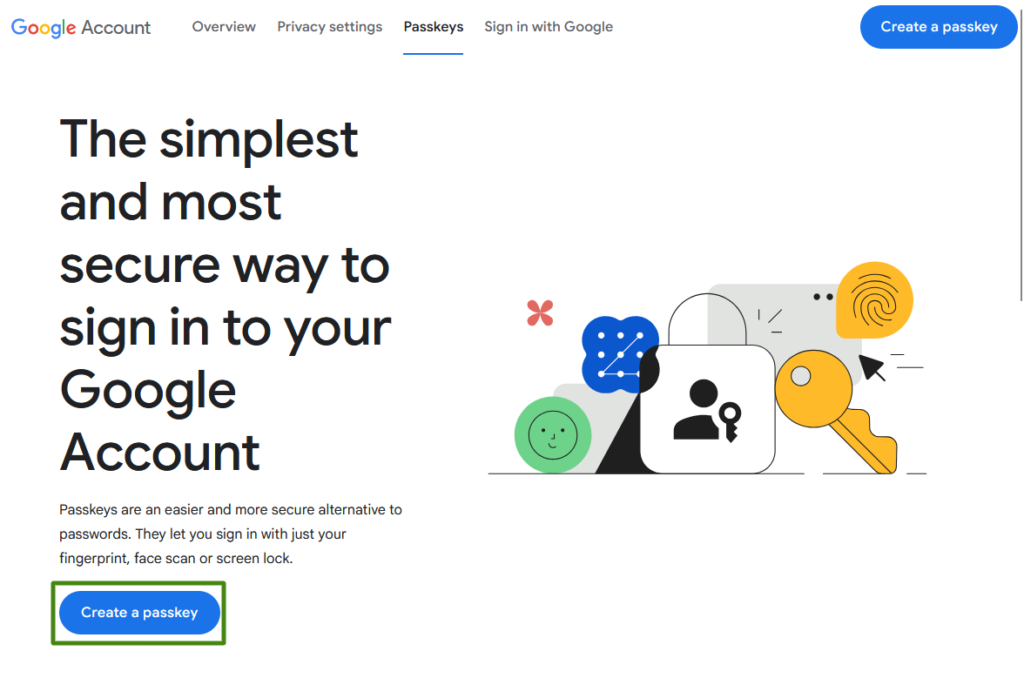
Now you should see this screen below, click on create a passkey:
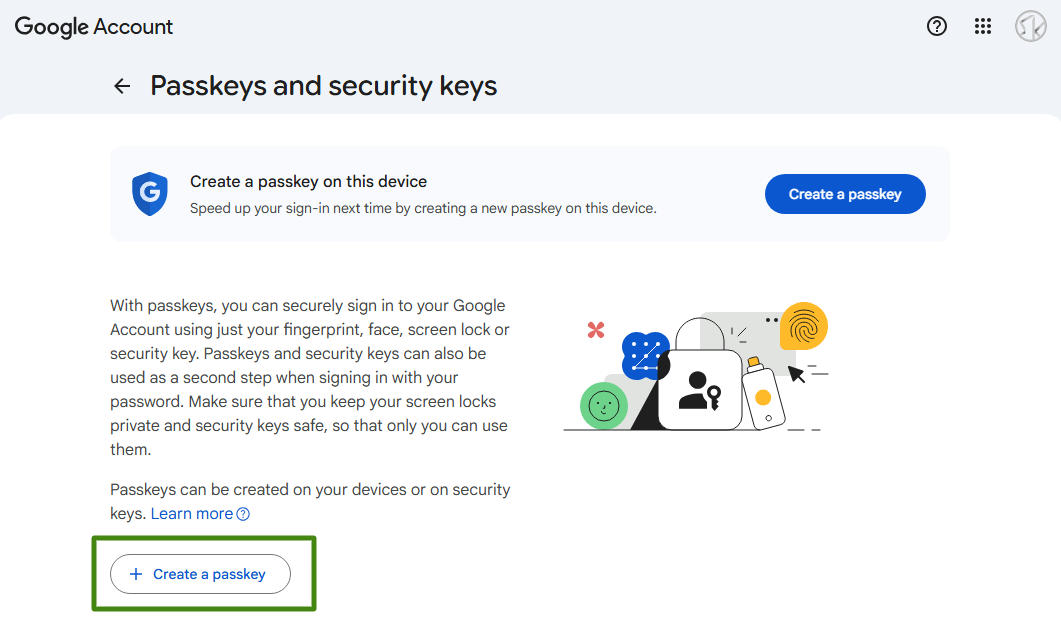
Creating your Passkey
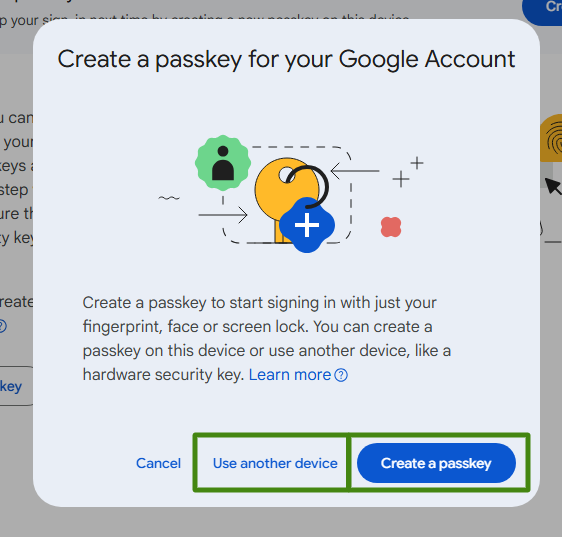
After clicking on create a passkey everyone’s experience will be slightly different. So we will break up the instructions. Select Create a passkey if you intend to set it up on your current device, and choose Use another device if you intend to store the passkey on your phone.
Jump straight to the right section:
Windows – Using Chrome (or any chromium browser)
MacOS – Using Chrome (or any chromium browser)
Mobile Phone – IOS or Android (can be done from Windows or MacOS)
Windows – Chrome (Chromium)
Select create a passkey to continue on your Windows device. This will open a popup asking for Face Identification, Fingerprint, or pin code.
Note: Your device may not support this, if it doesn’t you can still use your phone, or a 3rd party password manager.
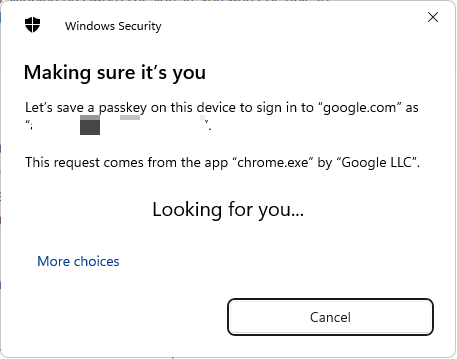
After verifying yourself click ok and your passkey will be created, then close the popup.
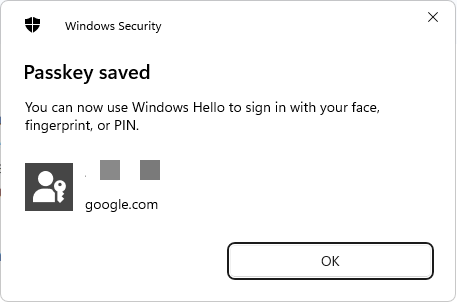
If you have done this you are now done and can continue to this section.
MacOS – Chrome (Chromium)
Select create a passkey to continue on your Mac. This may show a security prompt which you need to allow. MacOS will default to saving your passkey to Apple Passwords. If this is where you want it simply confirm using Touch ID or password and you are done.
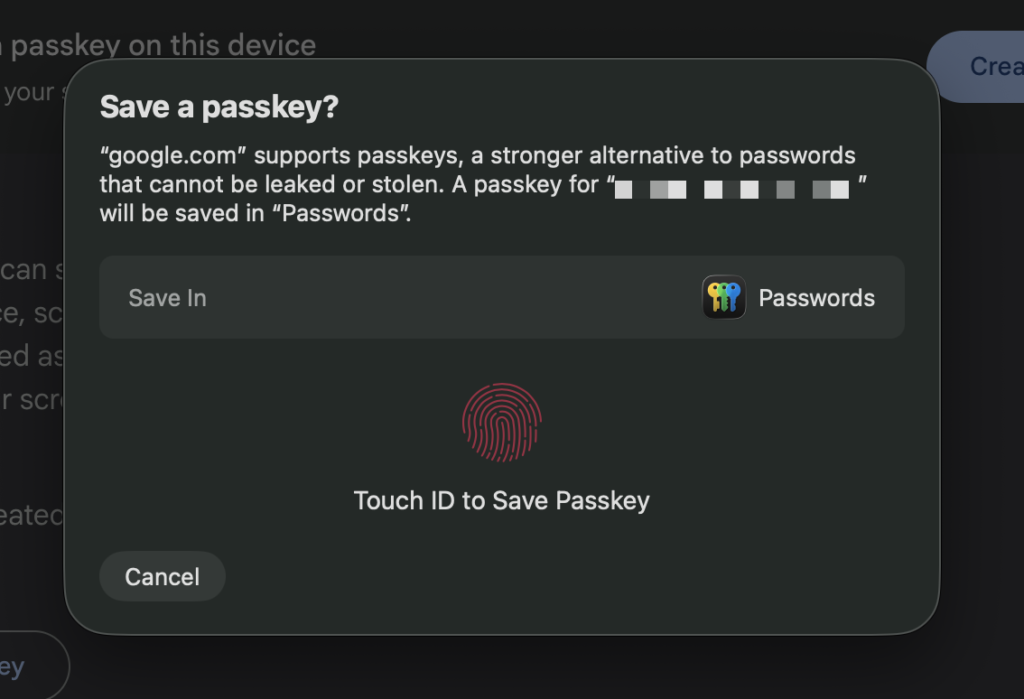
If you instead intend to use another method click cancel on this popup, Chrome will then ask you where to store it, choose Your Chrome Profile, then click continue and verify with Touch ID or password.
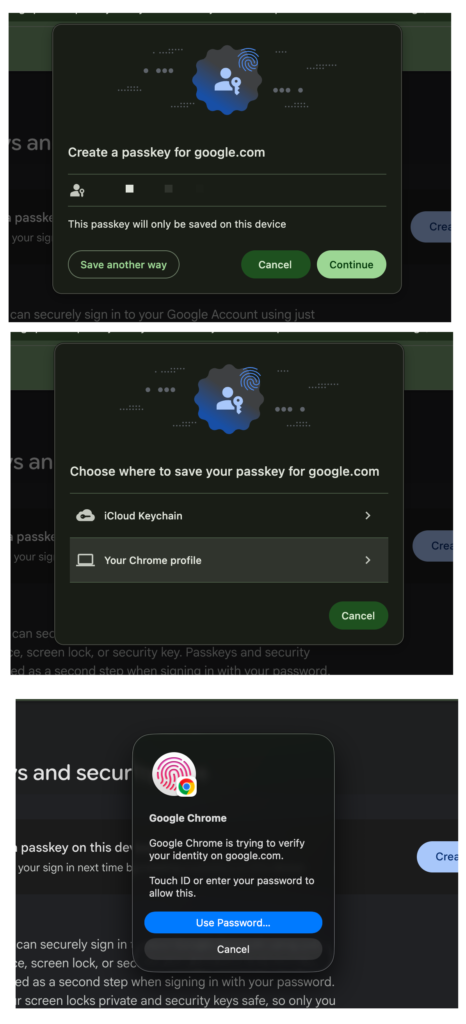
If you have done this you are now done and can continue to this section.
Phone – Android / IOS
To continue using your android phone click on Use another device. This will show a QR Code (on both Mac and Windows) that you can scan using your phone.
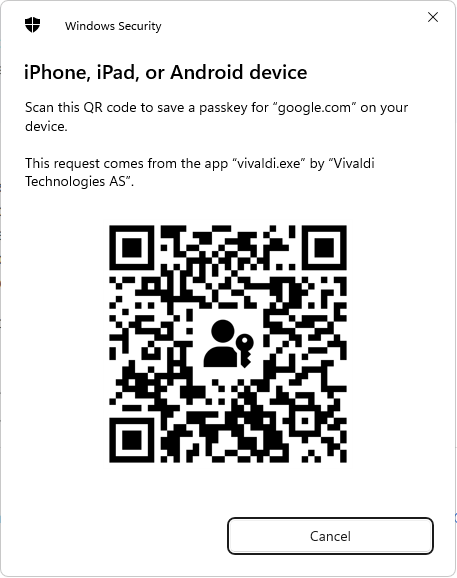
This process requires Bluetooth so you will be prompted to turn it on. Scan it using your camera app or a dedicated QR Code scanner. This will then prompt you to create the passkey on your mobile device. This will vary slightly by device, but should be very simple if you have a compatible password manager installed on your phone.
If you have done this you are now done and can continue to this section.
3rd Party Password Manager
Quite a few password managers now include passkey support. To use this functionality make sure to install their browser extension or desktop app (you will need to refresh the page if you only just installed it). You will need to click create a passkey, then it will either show up before the Windows/MacOS popup or right after it’s closed. Then it can be saved using the password managers custom interface.
Here are some links for tutorials for different password managers:
Proton Pass: https://proton.me/support/pass-use-passkeys
Bitwarden: https://bitwarden.com/help/login-with-passkeys/
LastPass: https://www.androidpolice.com/lastpass-passkey-create/
1password: https://support.1password.com/save-use-passkeys/
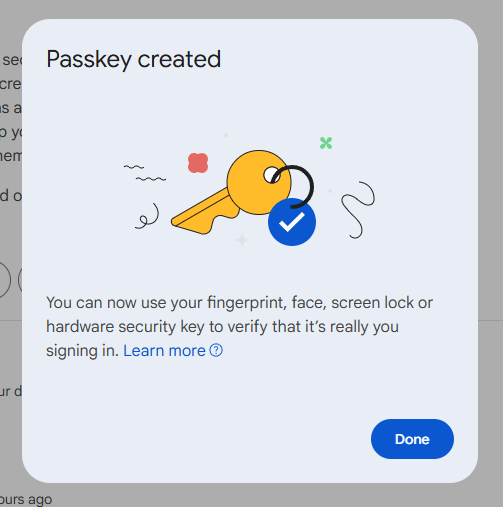
Passkey Created
You will know your passkey has been created when you see this screen:
Enable your new passkey
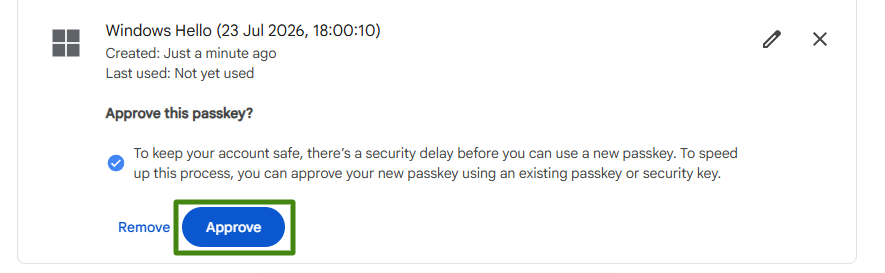
Only one step left, enabling your new passkey. It will activate on it’s own in a few days, but to start using it right away you need to log in to google one last time.
Scroll to your new passkey, you will see a message asking to Aprove this passkey. Click approve and verify your login using your normal 2 factor authentication (text or 2fa code):
All done!
You are all set up for Google’s future passkey requirements. You can test out your passkey using the test option at the top of the passkey page, and in the future when you log in you will have the option to use your passkey instead of your password. It can be a good idea to set up a second passkey on another device if you aren’t using a password manager.