



Shopify – Installing Google Analytics & Merchant Center
Updated March 2026
This guide walks you through installing Google Analytics 4 and Google Merchant Center in Shopify in just a few minutes.
Connecting Google Analytics and Merchant center to Shopify can be daunting. Luckily
Shopify has put a lot of effort in to making this process easier. Using the guide below you can have everything connected in a few minutes.
Preparation
Google Analytics: Make sure your account has Administrator access to the GA4 property. If you don’t have a Google Analytics property please make one before continuing.
Let the Shopify integration create the accounts: If you haven’t set anything up yet
Merchant Center: Your account needs to have Super Admin access to merchant center. If you don’t have a merchant center account it’s a lot easier to let the Shopify integration create it for you. Super Admin access can’t be granted from within Merchant Center, it’s done from Google Business Manager. In most cases the account that created the Merchant Center will be the only one with this level of access.
Google Analytics 4 and Google Merchant Center are both integrated through the same plugin using the same Google account.
If you intend on using both connections you need to make sure the same account has access to both. Merchant Center has much more stringent linking requirements requiring Super Admin access which usually only one account has.
Install Google & Youtube App
Note: You need the permission to Manage and install apps and channels in Shopify.
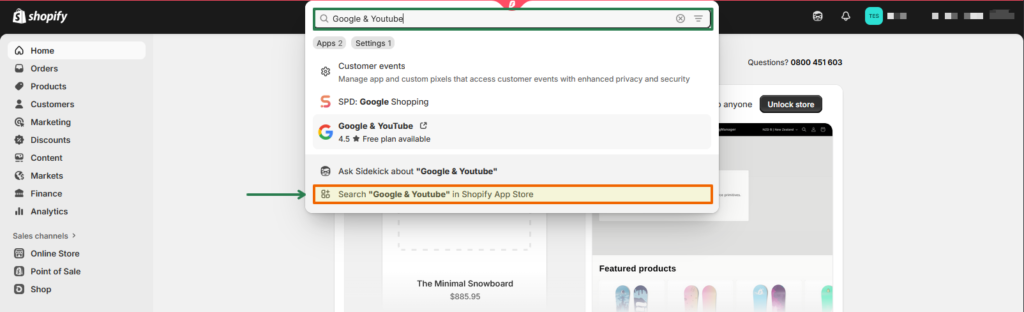
In your Shopify dashboard search for Google & Youtube using the universal search at the top. If you see Google & Youtube in the results click on it, otherwise click Search in the Shopify app store at the bottom:
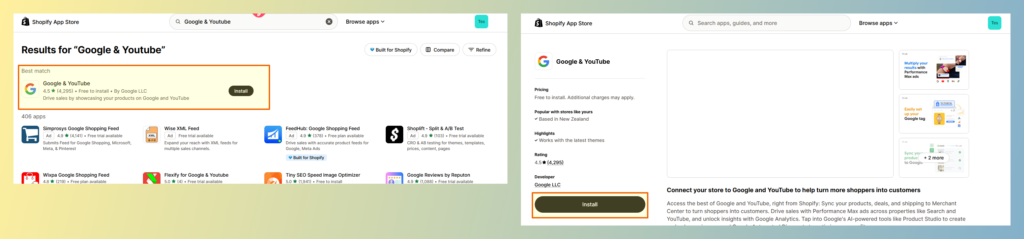
If you had to click search in Shopify app store you will see the Google & Youtube app at the top. Install the app:
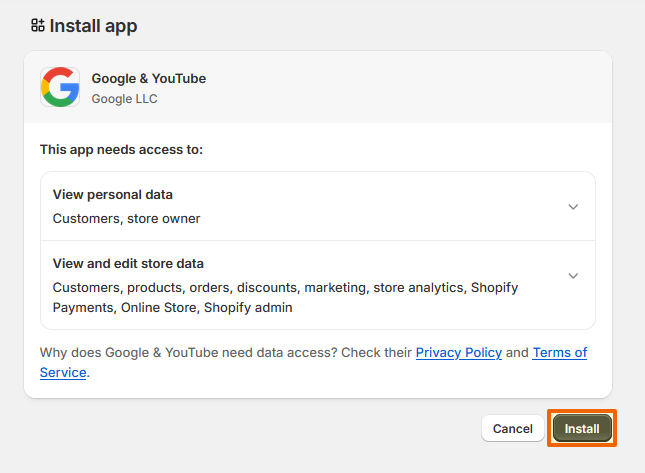
This will take you back to Shopify where you need to confirm the installation:
Connecting Google
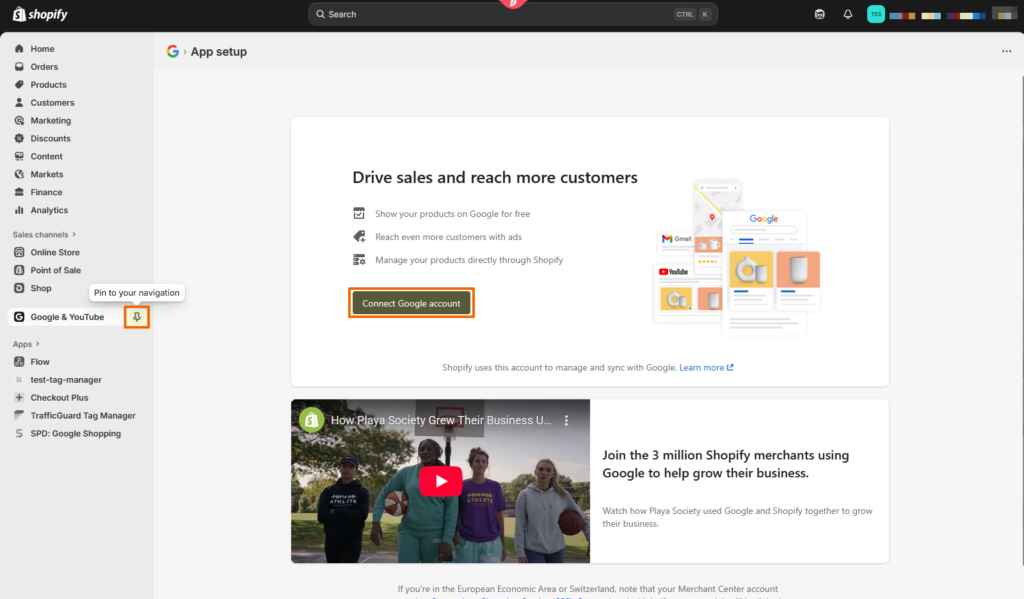
Shopify should take you directly to the Google & Youtube app after installation. If it doesn’t you can always search for it in the universal search at the top. In order to get back to the app easily make sure you pin it to the sidebar.
Then click connect Google Account.
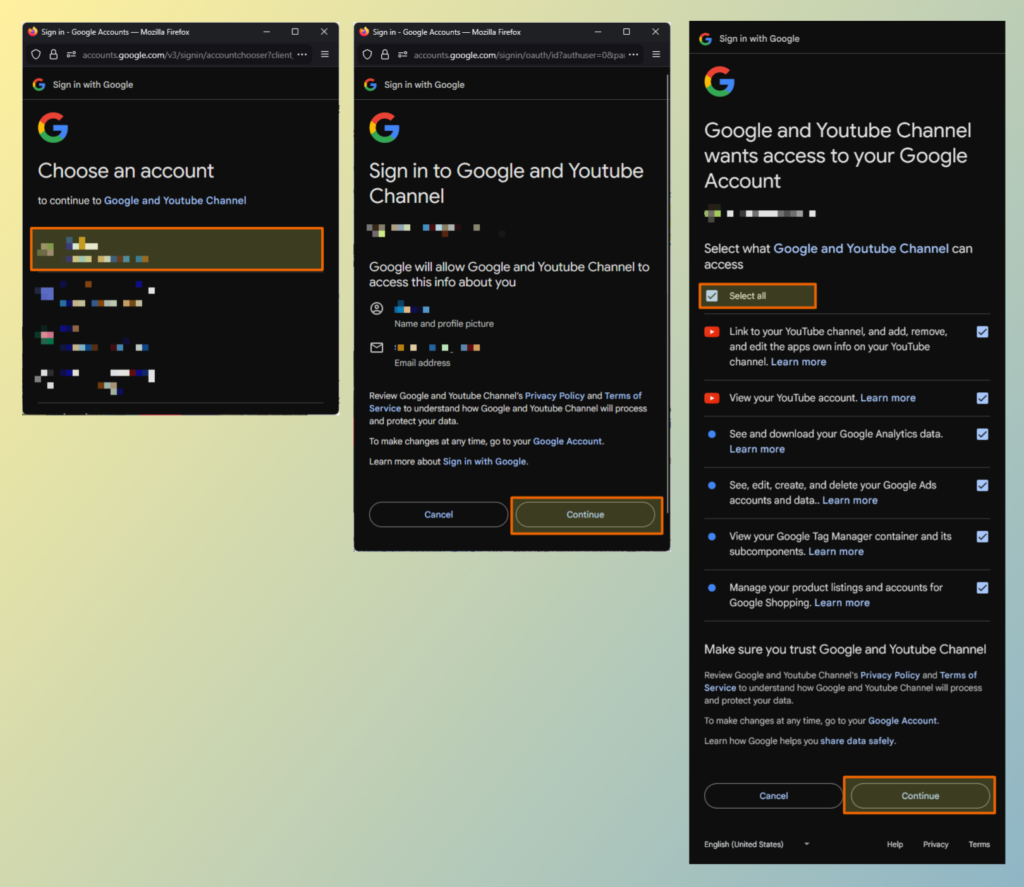
A popup will ask you to log in with Google. Select the account you want to use and click continue, then confirm to continue. On the final screen you will see a bunch of check boxes for different permissions, although they seem optional you need to select all of them. If you don’t select every checkbox it will ask you to go back and tick them.
Setup – Merchant Center
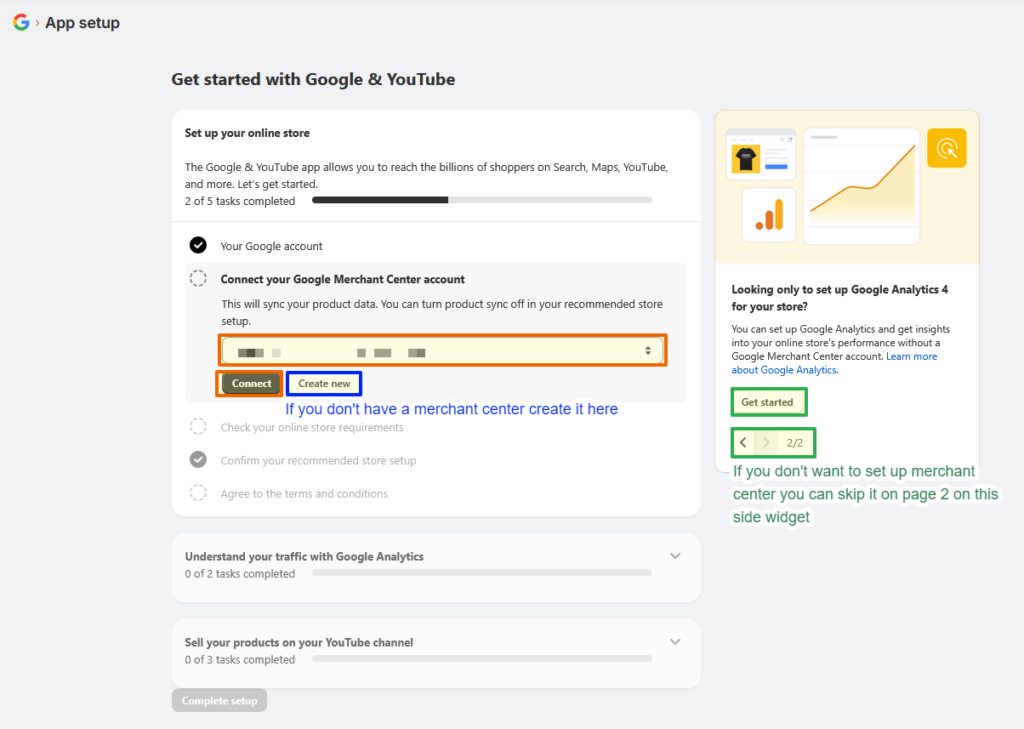
Note: If you don’t want to set up Merchant Center this can be skipped by going to the second page on the widget on the right and clicking Get Started.
Shopify will now show you the Merchant Center connection screen. Here you will see a list of all Merchant Center accounts you have access to with the required permissions. If you don’t see the Merchant Center account in the dropdown you may either be logged in to the wrong account, or you don’t have Super Admin (which needs to be granted in business manager). Click on the account and hit connect, or if you didn’t create an account yet you can click Create new and let Shopify set one up for you.
Note: You may see a warning about your domain already being claimed by another account. This means you have another merchant center that uses your domain. If this makes sense you can safely click Transfer your domain, but otherwise it’s worth clicking disconnect and double checking you’ve selected the correct Merchant Center.
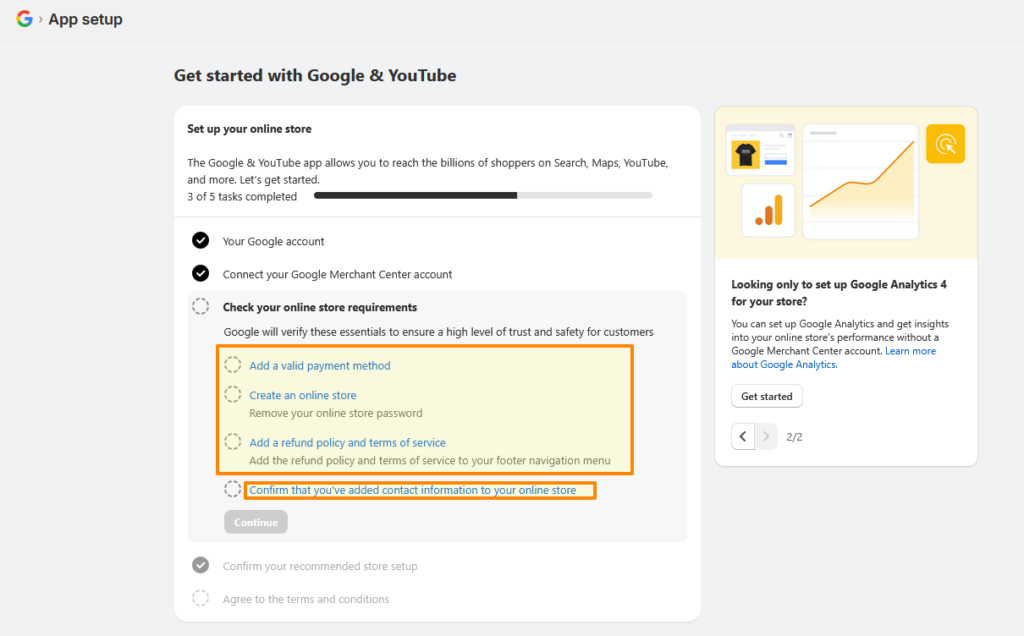
You will need to complete 3 basic requirements to complete the connection. You can click on each of them to go to the required location if you haven’t completed one. The final option “Confirm that you’ve added contact information to your online store” is not confirmed by Shopify, you will need to check this yourself, after which you click on the requirement and in the popup confirm you’ve completed it.
Click agree and merchant center is set up! Over the next few hours you will start to see your products and shipping information show up in Merchant Center. Make sure to double check that everything is correct in Merchant Center.
Some useful things to watch out for:
- Product Variants: Shopify product variants are automatically separated out into separate products in Merchant Center. So you may find you have many more products in Merchant Center’s dashboard.
- Regions: If your store uses Shopify regions with seperate pricing or shipping there will be duplicate products for each region. There may also be missing regions since there are quite a few regions not supported by Google Merchant Center for various reasons.
- Shipping: Shipping info often takes a bit longer to come through but it is vital to double check it. If you have a more complex shipping setup it may not get imported correctly. If this is the case you can either enter it manually into Merchant Center, or if you have a lot of regions/shipping options there are paid third party apps that do this automatically.
Setup – Google Analytics
This is a breath of fresh air if you are coming from the Merchant Center setup, there’s very little to do here. Select the correct GA4 property from the dropdown and click connect:
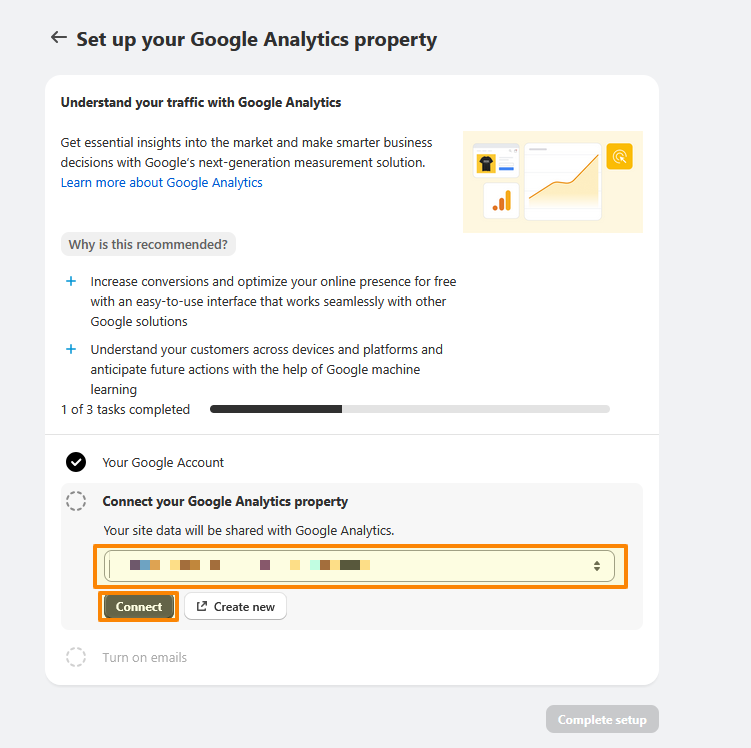
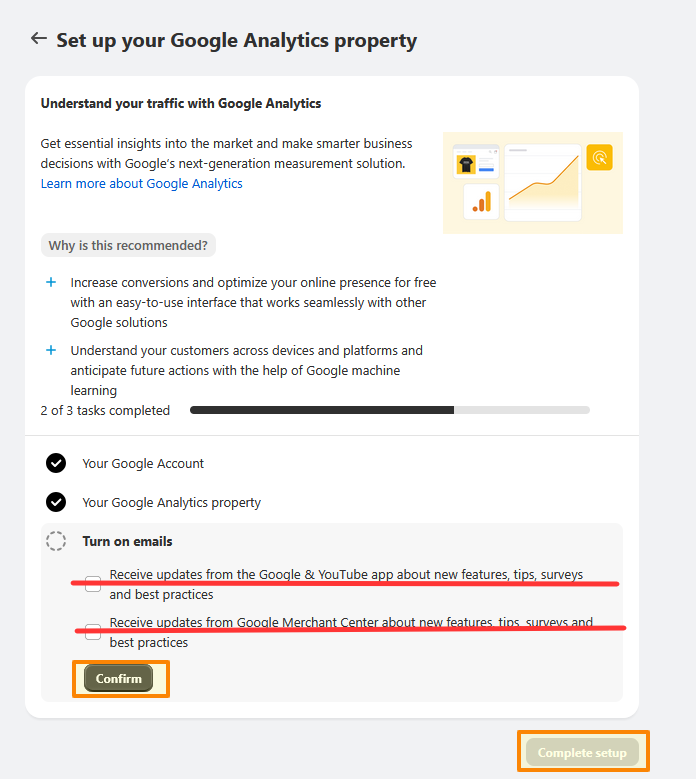
It will then ask you whether you want to recieve emails. These are not required and are probably best left un-ticked. Then click confirm and Complete setup and you are done:
Making Changes
You are all done, but if you ever need to make changes that can be done from the settings tab in the Google & Youtube app. You can add extra GA4 tags, stop syncing products from selected regions to Merchant center, turn off syncing shipping information to Merchant Center, and set up a Youtube connection.
Questions Answered
Why can’t I see my Merchant Center account in the Shopify dropdown?
This most commonly happens if you are logged into the wrong Google Account. You need to give Merchant Center access to the same account you use for Google Analytics. Also make sure this account is logged in on the same browser and used when setting up the Google & Youtube app in Shopify.
Why do I have more products in Merchant Center than in Shopify?
This is normal if you are running a multi-location store. To add support for complex regional product changes in Shopify Google Merchant Center creates a seperate product for each region.